
EliteAlgo ONE
EliteAlgo ONE puts buy and sell signals on your chart, and it is picky about when it does. A signal only shows up after the candle has closed, and only when the trend structure agrees with it. Once a signal is on a closed candle, it stays there.
EliteAlgo ONE runs on ChartLabs, our own charting platform.
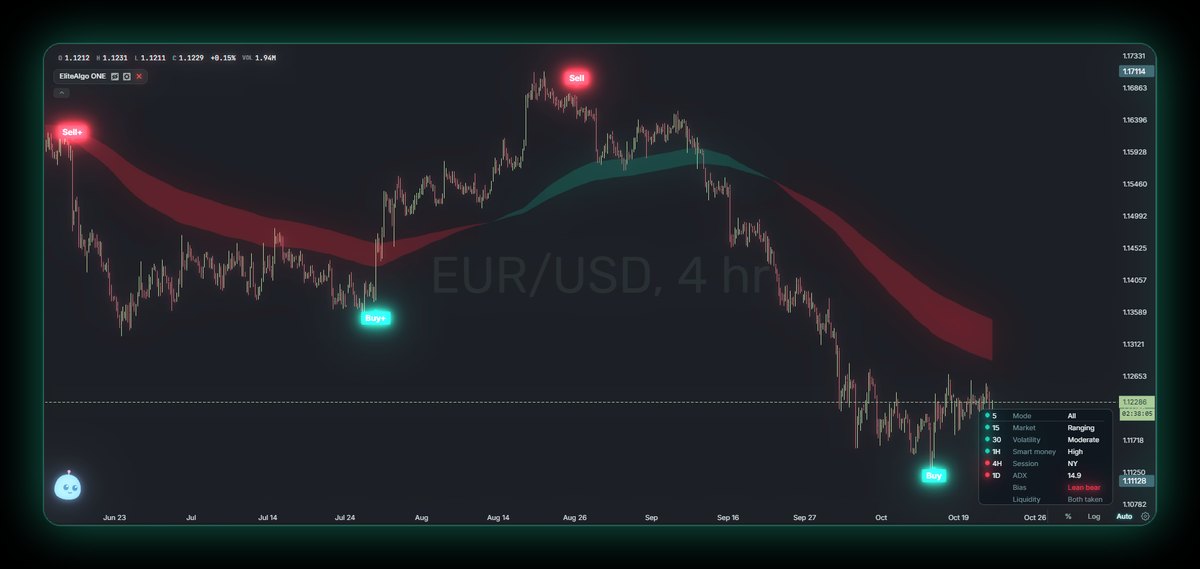
What it does for you
- It waits for the close. Nothing prints on a candle that is still forming, so you are not chasing a signal that disappears a minute later.
- It checks the trend first. A buy needs the market making higher highs and higher lows, or a clear break back up. A sell needs the opposite. Signals that fight the structure get filtered out.
- It ignores the small stuff. A tiny candle in the middle of a quiet range will not trigger a signal.
- You pick how strict it is. Three levels: All Signals, Smart Signals, and Confirmed.
- It can tune itself to your chart. The AI Optimizer finds settings that fit the chart you are on and applies them. If you do not like the result, one click undoes it.
ONE handles the signal. If you also want the market structure drawn on the chart, add Smart Money Concepts next to it. If you want a second pair of eyes, Atlas can add both for you and explain what is on the chart.
Add it to your chart
- Open a chart on ChartLabs.
- Click Indicators.
- Open the Elite tab.
- Click EliteAlgo ONE.
ONE is for active Elite Signals members on a paid or lifetime plan. Sign in to ChartLabs with the same email as your Elite Signals account and it unlocks on its own. A ChartLabs plan on its own does not include it, and guests cannot add it.
If ONE still asks you to upgrade, contact support and we will link your accounts.
Choose how strict it is
Open the ONE settings and go to Signals. Signal Modes has three levels.
- All Signals (the default). Every signal that passes the closed-candle and trend check. The most signals of the three.
- Smart Signals. Only the signals that go with the bigger trend: buys above the 200 EMA, sells below it.
- Confirmed. The strictest level. It waits for trend, momentum, and a breakout to line up, so you see fewer signals. Turn on the Trend Cloud under Chart if you want to see the trend it is waiting for.
A quick rule of thumb: if the chart feels busy, move up a level. If you are missing moves you care about, move down one.
Tune it to your chart
Every market moves at its own pace. A setting that fits a slow forex pair can be too jumpy on a fast crypto chart. The AI Optimizer handles that for you. It is the card at the top of the ONE settings menu. Run it and it tries a range of settings on the chart in front of you, then applies the ones that fit it best.
If you do not like what it picked, click Undo. Your previous settings come straight back. Nothing is locked in.
Want it to happen on its own? Turn on Auto on the same card, and ONE tunes itself whenever the chart loads.
Prefer to do it yourself? Sensitivity is the main dial. Lower numbers sit closer to tops and bottoms and give more signals. Higher numbers are smoother and give fewer. There is also an older Elite AutoTuner switch in the Signals section that sets sensitivity from how far apart recent swings are, with Short-term, Mid-term, and Long-term options.
Settings at a glance
You do not need to touch any of these to get started. They are here for when you want to.
- Signals. Signal mode, sensitivity, and two filters that cut back-to-back signals in a choppy, quiet market: Noise Immunity and Min Move Between Signals. MicroSignals are smaller, early marks and start off.
- Chart. Optional extras, almost all off to begin with: candle colors, trend cloud, reversal bands, consolidation zones, support and resistance, trendlines, and a volume profile (on). ONE also has its own Elite Order Blocks. Leave those off if Smart Money Concepts is on the same chart, so you do not get two sets of boxes.
- Risk levels. TP/SL Recommendation (off) draws a suggested stop and up to three targets for the latest signal. They are reference levels on a chart, not instructions. Where you put your stop is your call.
- Panel. The market panel in the corner. Move it, resize it, or turn it off.
- Sessions. Shade the Sydney, Tokyo, London, and New York sessions on intraday charts.
- Alerts. Get notified when a new signal prints.
A good first session
- Add EliteAlgo ONE from the Elite tab.
- Leave it on All Signals for a session, just to get a feel for it.
- Switch to Smart Signals if you only want signals that go with the bigger trend.
- Run the AI Optimizer. If you do not like the result, click Undo.
- Add Smart Money Concepts when you want the structure drawn out.
- Open Atlas and ask it what is on your chart.
Trading involves risk
EliteAlgo ONE is a charting tool. It does not know where price goes next, and no signal is guaranteed. Trading can lose money, and nothing here is financial advice.